 Your Book Nest
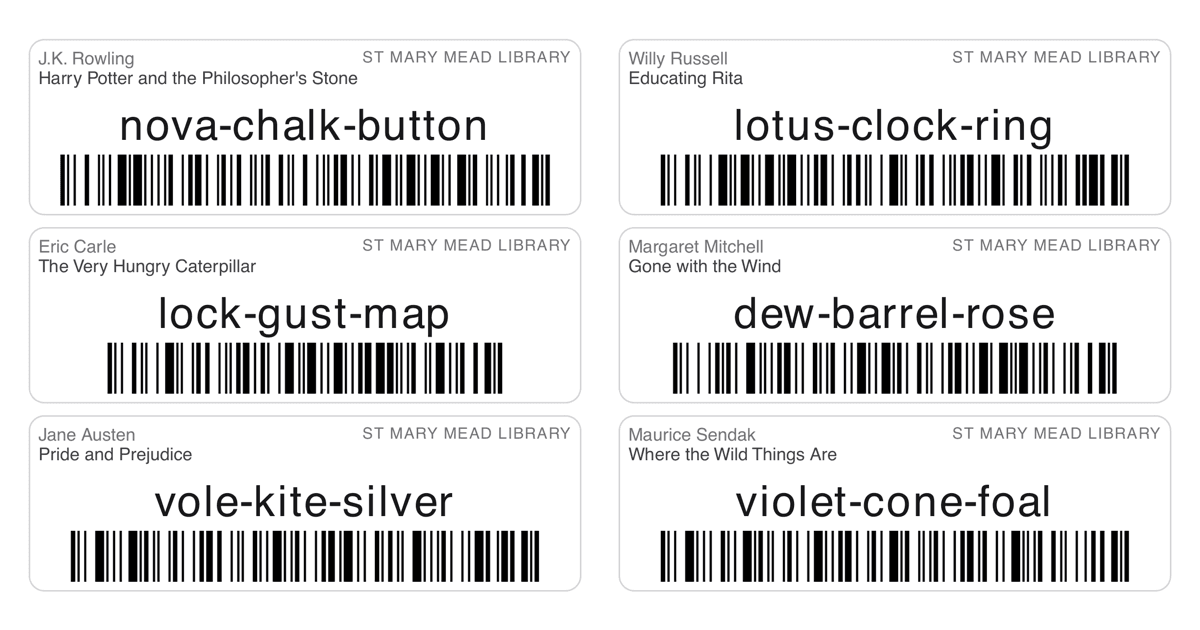
Every copy already has a three-word code; a label puts that code on the physical book. The Labels page keeps track of which copies still need one, and the PDF it makes lines up with the Avery address sheets sold in any office shop - no label printer, no ordering pre-printed barcodes.
What does a label look like?
Three things: the copy's three-word code, large enough to read at arm's length; the item's title; and a barcode of the code for anyone using a scanner. The code is the hero on purpose - a volunteer without a scanner just reads it out. You can see a sample sheet before you print your own.
Which sheets does it print on?
Avery 5162(opens in a new tab) address labels - the common 14-per-sheet US Letter stock, with labels 1⅓ by 4 inches - or any compatible 14-up sheet. Load the sheet into an ordinary home printer and print the PDF at 100% scale.
How do I print my first batch?
Open Labels. New copies arrive as not printed, and that is the default view, so the page opens on exactly the copies that need labels. Select them, generate the sheet, print, and stick each label on its copy - the title on the label tells you which is which.
Can I use a partly used sheet?
Yes. Before generating, mark which positions on the sheet are already used and the PDF skips them, so a sheet with three labels missing still prints eleven labels in the right places. The picker remembers where you got to, ready for next time.
How does the printed status work?
Printing a label stamps the copy as printed, which keeps it out of the default not-printed view. The status is yours to override - clear it to queue a reprint for a worn or lost label, and reprint as often as needed.
How do I type a code at check-in?
Type the code into the search and don't fuss over how it is punctuated - spaces, dashes and capital letters are all ignored. river-maple-stone, river maple stone and RIVERMAPLESTONE all find the same copy, so you can read the code straight off the label whatever way is quickest. The same forgiving match runs at check-out and anywhere else you search by code.
Do I need a barcode scanner?
No. The three-word code is designed to be read and typed by a human, and check-out and check-in find copies by code or title just as well. If you have a scanner, it reads the label's barcode and types the code for you - a speed-up, not a requirement.
How Your Book Nest handles labels
The Labels page opens on the copies that still need labels. Select, generate and print onto Avery 5162 sheets at home, telling it which positions of a part-used sheet remain. Printed status is stamped automatically and can be cleared for reprints, and a scanner stays optional.